
TOPIC
The Ultimate Guide: Converting JPG to WebP for Faster Web Performance

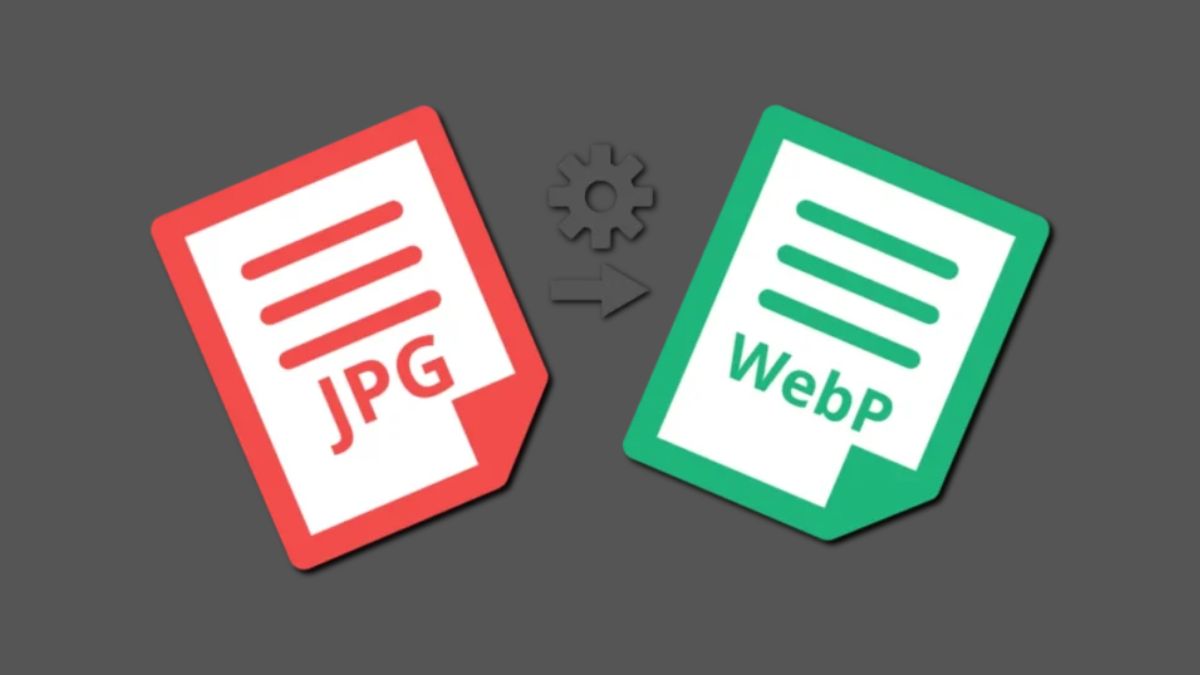
In today’s fast-paced digital world, website performance is more crucial than ever. A significant factor affecting how quickly a website loads is the size and format of its images. As image-heavy websites continue to dominate the internet, finding efficient ways to store and serve images has become a priority for web developers and designers alike.
Among the most common image formats used online are JPG (JPEG) and WebP. While JPG has been the standard for years, the WebP format, introduced by Google in 2010, is quickly gaining popularity due to its ability to deliver high-quality images with significantly smaller file sizes. But what does this mean for those who rely on JPGs for their websites? The solution is simple: converting JPG to WebP.
In this guide, we will explore why converting JPG to WebP is beneficial, how it can improve your website’s performance, and provide a step-by-step process for converting these file formats efficiently.
What is JPG (JPEG)?
JPG, also known as JPEG (Joint Photographic Experts Group), is a widely used image format that employs lossy compression. This means that some of the image data is discarded to reduce file size, making JPG images more suitable for websites and digital storage.
JPEG images are especially effective for photographs and complex images that involve a lot of color variations, such as landscape or portrait photography. Despite its popularity, JPG images can have larger file sizes, especially for high-resolution images.
What is WebP?
WebP is a modern image format developed by Google to improve the performance of web pages. It is designed to provide both lossless and lossy compression, which helps reduce the size of image files without compromising on quality. The key advantage of WebP over JPG is its ability to compress images more efficiently, producing smaller file sizes while maintaining a similar or even superior image quality.
WebP supports transparency (like PNG) and animation (like GIF), making it a versatile choice for web developers. In many cases, WebP images are significantly smaller than JPG images, resulting in faster page loading times and reduced bandwidth usage.
Why Convert JPG to WebP?
Converting JPG images to WebP offers several compelling benefits:
Faster Page Load Times
One of the most important reasons to convert JPG to WebP is to improve your website’s performance. Smaller file sizes mean faster loading times. Page speed is a critical factor in user experience, and a slow-loading website can lead to higher bounce rates and lower conversion rates.
WebP images typically have 25% to 34% smaller file sizes compared to JPG images of the same quality. This reduction in file size directly translates to faster page loads, especially for websites with large numbers of images.
Improved Mobile Experience
In an increasingly mobile-first world, optimizing images for mobile devices is essential. Mobile users often have slower internet connections and limited bandwidth. By using WebP images, which are smaller and load faster, mobile users will experience a smoother and more efficient browsing experience.
WebP’s superior compression technology ensures that mobile websites deliver high-quality images with minimal data usage, which is particularly beneficial for users with data limitations.
Better Image Quality
While JPGs are already quite efficient at compressing images, WebP takes image quality to the next level. With both lossy and lossless compression methods, WebP ensures that even smaller image files look as sharp and clear as possible. In many cases, the WebP image quality is better than JPG at a fraction of the file size.
For instance, when converting a JPG to WebP, you might notice that WebP retains more detail in the image while still reducing the overall file size. This makes it ideal for photographers, designers, and businesses that want to provide high-quality visuals without sacrificing performance.
Improved SEO Performance
Website speed is an important ranking factor for search engines like Google. Since WebP images can significantly reduce page load times, using WebP can improve your site’s SEO (Search Engine Optimization) performance. Faster loading times lead to better user experiences, and search engines tend to rank websites that provide positive experiences higher in their search results.
Compatibility with Modern Browsers
WebP is supported by all major browsers, including Google Chrome, Mozilla Firefox, Microsoft Edge, and Opera. While Safari did not support WebP for a long time, Apple added support for WebP in Safari 14, released in September 2020. As a result, WebP is now widely compatible with most browsers, making it a reliable option for modern web design.
However, it’s essential to keep in mind that older browsers or some versions of Internet Explorer may not support WebP. To address this issue, many developers serve WebP images as a fallback and default to JPG or PNG for unsupported browsers.
How to Convert JPG to WebP
Now that you understand the benefits of converting JPG to WebP, let’s dive into the process. You can convert JPG to WebP using a variety of methods, including online converters, desktop software, and command-line tools.
Using Online Converters
For users who need to convert a small number of images quickly, online image converters are a great solution. Here’s how you can use an online converter to change JPG to WebP:
Choose a Reliable Converter: Popular online converters include Convertio, CloudConvert, and Online-Convert. These tools offer free and paid plans with varying file size limits and features.
Upload Your JPG Images: Once you’ve selected an online converter, simply upload your JPG images to the platform.
Select WebP as the Output Format: Choose WebP as the desired output format.
Download the Converted Images: After the conversion process is complete, download the WebP images to your device.
While online converters are easy to use, they might not be the most efficient for bulk conversions or large files due to size limitations and slower processing times.
Using Desktop Software
For those who need to convert multiple images or work with high-quality images, desktop software offers more control over the conversion process. Some popular image editing tools that can handle JPG to WebP conversion include:
Adobe Photoshop: With the right plugins, you can easily convert JPG to WebP in Photoshop. You can also fine-tune compression settings to achieve the best balance of quality and file size.
GIMP: GIMP is a free, open-source alternative to Photoshop that supports WebP. You can use GIMP to open JPG files and export them as WebP images with customized compression options.
IrfanView: A lightweight image viewer and editor, IrfanView allows users to batch convert images from JPG to WebP. It also provides options for adjusting the quality and compression levels.
Using Command-Line Tools
For advanced users, command-line tools can offer more flexibility and automation for bulk conversions. One of the most popular tools for converting images to WebP is cwebp, a command-line utility developed by Google.
Here’s a basic example of how to use cwebp to convert JPG to WebP:
Install cwebp: Download and install the WebP tools from the official Google WebP website.
Run the Command: Use the following command to convert a JPG image to WebP:
lua
CopyEdit
cwebp input.jpg -o output.webp
Batch Conversion: You can also use cwebp to convert multiple images in a folder:
perl
CopyEdit
for %i in (*.jpg) do cwebp %i -o %i.webp
The cwebp tool provides more control over compression settings, allowing you to adjust factors such as quality, lossless compression, and even the number of threads used for processing.
Optimizing WebP Images for Web Use
After converting your images to WebP, there are a few additional steps you can take to optimize them for web use:
Adjust Compression Settings
Whether you use online converters or desktop software, make sure to adjust the compression settings for each image. Balancing image quality and file size is crucial, as overly compressed images can lose detail, while higher quality settings can still result in relatively large file sizes.
Use Lazy Loading
Lazy loading is a technique that defers loading images until they are needed, i.e., when the user scrolls down the page. This can further improve page load times, especially for image-heavy websites.
Implement Fallbacks for Unsupported Browsers
Since some older browsers do not support WebP, it’s essential to implement fallbacks for these cases. The most common method is to use the picture HTML element, which allows you to define multiple image sources. Here’s an example:
html
CopyEdit
<picture>
<source srcset=”image.webp” type=”image/webp”>
<img src=”image.jpg” alt=”Image description”>
</picture>
This way, WebP will be displayed in supported browsers, while the JPG version will be used as a fallback for unsupported ones.
Conclusion
Converting JPG to WebP is one of the most effective ways to optimize images for faster loading times, improved SEO, and a better overall user experience. Whether you’re a web developer, photographer, or business owner, adopting WebP can help you reduce bandwidth usage and provide high-quality visuals without sacrificing performance.
By using the methods outlined in this guide—whether through online converters, desktop software, or command-line tools—you can easily convert your images to WebP and take advantage of all the benefits that this modern image format has to offer.


Embarking on a home remodeling project in Boston is a significant decision that can add both value and comfort to your home. Achieving the results you envision depends on making the right choices from the outset, especially when it comes to selecting your contractor. With the wide range of home remodeling contractors boston ma available, it is important to understand the steps that will help you find a professional who delivers quality work, meets deadlines, and complies with local regulations.
The process involves more than simply picking a name from a list. You must verify credentials, examine experience, compare proposals, and ensure all aspects are transparent and well-documented. This comprehensive guide walks you through each key consideration so your Boston remodeling project succeeds from start to finish.
Whether you’re updating a kitchen, finishing a basement, or adding space, your contractor’s experience and reliability will have a lasting impact on your investment and satisfaction.
Our step-by-step approach will help you discern between average and exceptional professionals, allowing you to confidently hire a partner who turns your vision into reality while avoiding costly mistakes and unnecessary stress.
Why Is Choosing the Right Contractor Crucial?
The contractor you select will determine the outcome of your remodeling project. A qualified, reputable contractor provides peace of mind by ensuring safety, adhering to building codes, and delivering high-quality workmanship. At the same time, a trustworthy professional minimizes delays and cost overruns, making the remodeling process smoother and more enjoyable. Beyond technical skills, they will communicate effectively and align with your vision, safeguarding your investment in both the short and long term.
What Licensing and Insurance Should You Verify?
Contractors working in Boston and throughout Massachusetts must be registered with the state’s Office of Consumer Affairs and Business Regulation. Before hiring any contractor, ask to see their license and verify its validity online via mass.gov. Additionally, confirm that your contractor carries both liability insurance and workers’ compensation insurance. Liability insurance covers accidents or property damage, while workers’ compensation protects you from liability if a worker is injured on your property. Never hire a contractor who cannot provide proof of these essential credentials.
How Can You Assess a Contractor’s Experience?
Reviewing a contractor’s previous work is one of the most effective ways to evaluate their capabilities. Ask for a portfolio of completed projects similar to yours as well as client references. Look for consistency, quality finishes, and styles that align with your goals. Discuss specific details about your project to ensure the contractor has handled similar challenges before. Review platforms like Houzz or local home improvement directories for additional insights and examples of their recent work.
Why Should You Obtain Multiple Bids?
Requesting proposals from several contractors allows you to compare project costs, timelines, and work scopes side by side. Each bid should be detailed, clearly outlining labor, materials, and a projected completion schedule. This transparency helps you detect unusually high or low bids, which could signal hidden issues or corners being cut. Consider factors beyond just price, including communication style, responsiveness, and how well the contractor understands your vision.
How Important Are Client Testimonials and References?
Checking reviews and testimonials gives you first-hand insights into a contractor’s professionalism, reliability, and workmanship. Ask the contractor for references you can contact directly, and consider visiting completed projects if possible. Online review sites and state archives, like the Massachusetts Home Improvement Guide, are valuable resources for uncovering any past complaints or disciplinary history. Genuine, consistent positive reviews and real project photos are strong indicators that you’re making a safe choice.
What Should You Look for in a Contract?
A clear, written contract is non-negotiable. It should detail every aspect of your remodeling project, including the full scope of work, itemized costs, payment schedule, materials specifications, timeline, and warranty information. Review the terms carefully and don’t hesitate to negotiate points that need clarification. Make sure both parties sign the final agreement only when you’re fully satisfied. If you’re uncertain about any terms, consult a legal or construction professional before proceeding to avoid misunderstandings or disputes later on.
How Can DBS Contractors LLC Assist You?
DBS Contractors LLC is recognized for its customer-focused approach and expertise in residential remodeling throughout Boston. With experienced professionals committed to high standards and transparent communication, they offer comprehensive solutions tailored to your needs. Whether your remodel is large or small, their team ensures the process is seamless from the initial consultation to the final walkthrough. Discover more about their approach and services by visiting DBS Contractors LLC.
By following these strategic steps and carefully vetting your contractor, you can make decisions that keep your Boston home remodeling project on track and on budget. Working with trustworthy professionals like DBS Contractors LLC transforms what could be a stressful process into a rewarding investment for your home and family.

Introduction to Destin’s Real Estate Market
Destin, Florida, renowned for its stunning white-sand beaches and emerald-green waters, has long been a coveted destination for homeowners and investors alike. The city’s real estate market reflects its unique coastal charm, offering a diverse array of properties that cater to a range of preferences and budgets. For those seeking expert guidance in navigating this market, partnering with a seasoned professional like Destin FL real estate agent Yvonne Summerfield can be invaluable. Yvonne Summerfield Florida, is an award-winning real estate broker providing exceptional representation along Florida’s Emerald Coast, including Destin. With over 850 properties sold and nearly $1 billion in total sales, she offers boutique service with global reach, ensuring clients receive personalized attention and expert advice tailored to their unique needs.
Current Market Trends
As of March 2026, the median sale price of homes in Destin has risen to $618,000, up 3.8% from the previous year. However, homes are now averaging 111 days on the market, a decrease from 129 days last year, indicating a shift in market dynamics. This trend suggests that while property values are appreciating, buyers are taking longer to make purchase decisions.
Furthermore, the Destin market has shown resilience amid broader economic uncertainties. With ongoing demand from both out-of-state buyers and residents, the area has maintained a healthy level of transactional activity. The sustained interest in relocation to Destin, primarily driven by lifestyle choices and remote work flexibility, continues to bolster demand for both primary residences and vacation homes. Notably, investment properties for short-term rentals also remain a popular segment due to Destin’s strong tourism sector, which attracts visitors year-round.
Neighborhood Spotlight: Dunes of Destin
The Dunes of Destin neighborhood exemplifies the area’s appeal, with a median sale price of $635,000, up 13% year over year. Homes here typically sell after 108 days on the market, down from 142 days the previous year, reflecting a more active market in this community.
Located in the heart of Destin, Dunes of Destin is a gated beachfront community offering residents exclusive access to private beaches and amenities, including community pools, fishing lakes, and lush landscaped grounds. This neighborhood attracts buyers seeking both vacation homes and investment properties, thanks to its central location near shopping, dining, and entertainment. Strong rental demand in this area further underscores its value to investors, while well-kept streets and a sense of community foster a welcoming environment for full-time residents.
Factors Influencing the Market
Several elements contribute to the current state of Destin’s real estate market:
- Inventory Levels: A 7.1-month supply indicates a balanced market, providing opportunities for both buyers and sellers.
- Buyer Behavior: With homes spending more time on the market, buyers have more negotiating power, leading to sales often closing below the initial list price.
- Economic Factors: Interest rates and insurance costs are influencing purchasing decisions, with some buyers adopting a wait-and-see approach.
Local regulations, particularly those related to short-term rentals, also impact investment strategies and purchasing decisions. Buyers considering rental properties should stay apprised of changing ordinances or HOA rules to ensure they align with their investment objectives. Natural events such as hurricanes and ongoing discussions about flood insurance rates can also impact buyer sentiment, making it crucial for buyers and sellers to consult local experts who understand the nuances of coastal real estate.
Opportunities for Buyers
For prospective buyers, the current market conditions present several advantages:
- Negotiation Leverage: Longer listing times can lead to more favorable purchase terms.
- Diverse Inventory: A variety of properties are available, from luxury beachfront homes to more affordable inland options.
- Potential for Appreciation: Investing now could yield significant returns as the market continues to evolve.
Buyers new to the area may also benefit from working with local lenders and real estate agents familiar with the intricacies of Gulf Coast real estate transactions. Thorough inspections and diligent research into property history and insurance requirements are essential steps, especially given the environmental factors unique to coastal regions. The current market also allows for more thorough due diligence periods, with less competition leading to fewer bidding wars and more thoughtful purchases.
Considerations for Sellers
Sellers should be mindful of the following:
- Pricing Strategies: Competitive pricing is essential to attract buyers in a market where properties are taking longer to sell.
- Property Presentation: Enhancing curb appeal and staging can make a property stand out.
- Market Timing: Understanding seasonal trends can help in planning the optimal time to list a property.
In addition, leveraging high-quality photography, virtual tours, and targeted online marketing will increase visibility to remote buyers and investors, notably those who often begin their home search online. Sellers should work closely with their agent to identify recent comparable sales in their neighborhood and develop a pricing strategy that reflects real-time market conditions. Transparency about property condition, particularly regarding recent upgrades, maintenance, or storm resilience, can further increase buyer trust and help facilitate smoother transactions.
The Role of Local Expertise
Navigating Destin’s real estate market can be complex. Partnering with a knowledgeable local agent can provide invaluable insights and guidance. For instance, working with a seasoned professional like Destin, FL real estate agent Yvonne Summerfield can help buyers and sellers make informed decisions. Yvonne Summerfield, based in Florida, is recognized for her expertise in the Destin market, offering personalized services tailored to each client’s unique needs.
Local agents provide guidance on everything from pricing and negotiations to property inspections and financing options, ensuring clients avoid common pitfalls. Their up-to-date knowledge of micro-market activity, new developments, and evolving regulations gives buyers and sellers a significant advantage in a dynamic and competitive market like Destin. Whether you are considering your first investment property or selling a family vacation home, a local expert’s insights are instrumental to achieving a successful outcome.
Conclusion
Destin’s real estate market offers a blend of opportunities and challenges. By staying informed about current trends and seeking guidance from experienced local professionals, both buyers and sellers can navigate the market effectively, ensuring successful transactions in this beautiful coastal city.
In summary, being proactive, whether leveraging negotiation opportunities as a buyer or optimizing listing strategies as a seller, can help individuals make the most of Destin’s ever-evolving market. With expert assistance and a clear understanding of priorities, transitioning into or out of Destin real estate can be a seamless and rewarding experience.
Homeowners face a variety of threats to their property’s value and safety, but few are as persistent and potentially destructive as water damage. One of the most powerful defenses against water intrusion is a well-maintained gutter system. Gutters that are clear of debris and functioning as designed protect your home’s foundation and prevent problems that can arise from unchecked water flow. If you need professional input or assistance, contacting gutter specialists can help ensure your gutters are always up to the task.
Neglecting regular gutter maintenance can lead to a host of costly repairs, from compromised roofing to damaged foundations. By focusing on routine care, you boost your home’s resilience against seasonal storms and year-round weather. Regular maintenance helps you spot issues before they escalate into significant concerns, saving time and money in the long term. Many homeowners are surprised to learn that simple steps, such as cleaning gutters biannually or after major storms, can keep the system working effectively for years. It is this consistent attention that prevents water from infiltrating living spaces and preserves the structural integrity of the entire house. In areas like Orlando, where downpours can be intense, investing time in gutter upkeep is nonnegotiable for long-term home protection. Beyond the basics, expanding your knowledge of maintenance routines is advisable. For comprehensive solutions, including installation, repair, and cleaning, professional Gutter Services are available to support homeowners in safeguarding their investments throughout the changing seasons.
Importance of Gutter Maintenance
Gutters are more than just architectural afterthoughts; they play a direct role in channeling rainwater away from your home’s foundation and exterior walls. Adequate gutter maintenance prevents water from pooling around your property, which can compromise your foundation, damage your roof, and eventually seep into the living areas. Gutters that are kept clean and in good shape provide peace of mind throughout rainy seasons.
Common Issues Caused by Neglected Gutters
Failing to keep gutters clear can trigger multiple problems for homeowners:
- Foundation problems: Water that overflows or leaks from clogged gutters pools around the base of your home, leading to cracks and instability.
- Roof deterioration: Water may back up under shingles if gutters are blocked, which encourages leaks and potential rot.
- Mold, mildew, and wood rot: Stagnant water and excess moisture left by overflowing gutters create ideal conditions for mold and decay.
- Landscape and exterior erosion: Water spilling over clogged gutters erodes soil and can damage landscaping as well as your home’s siding.
Recommended Gutter Maintenance Schedule
The ideal gutter-cleaning frequency depends on your environment. Homes surrounded by trees often require three or more cleanings each year, especially after fall and spring. At a minimum, gutters should be cleaned twice annually. Regular maintenance not only keeps gutters functioning but also allows you to catch minor issues before they require expensive repairs.
DIY vs. Professional Gutter Cleaning
Choosing how to approach gutter maintenance depends on your comfort with heights, available tools, and familiarity with gutter systems:
- DIY: Cleaning gutters yourself can be cost-effective. However, it requires proper safety equipment and the willingness to work with ladders and deal with mess. Inexperienced homeowners sometimes overlook less visible issues that a trained eye might spot.
- Professional assistance: Professionals bring experience and the right tools, ensuring a thorough job. They can identify early signs of damage that could be missed during a DIY cleaning and are trained to work safely on roofs and ladders.
Signs Your Gutters Need Repair or Replacement
- Sagging gutters: If gutters appear to pull away from the fascia, there may be water trapped inside or compromised brackets.
- Rust, holes, or visible cracks: Persistent leaks and rust indicate it is time for repair or replacement.
- Water stains on siding or fascia boards: These are signs of overflowing or leaking gutters that need urgent attention.
- Pooled water near the foundation: Indicates downspouts may not be adequately directing water away from your home.
Choosing the Right Gutter System for Your Home
An effective gutter system fits your home’s needs based on weather patterns, local foliage, and architectural style. Popular materials include aluminum, vinyl, steel, and copper, each providing unique benefits in terms of durability, aesthetics, and cost. Be sure to choose a gutter size that can handle the rainfall typical in your area; larger gutters are crucial in regions prone to heavy downpours. Finally, consider selecting a style that enhances your home’s overall appearance while ensuring functional water management.
Additional Tips for Effective Gutter Care
- Use gutter guards: Gutter guards can dramatically reduce the amount of debris entering your gutters, minimizing clogs and the need for frequent cleaning.
- Maintain the proper slope: Ensure that all gutters slant slightly toward downspouts to prevent pooling and standing water.
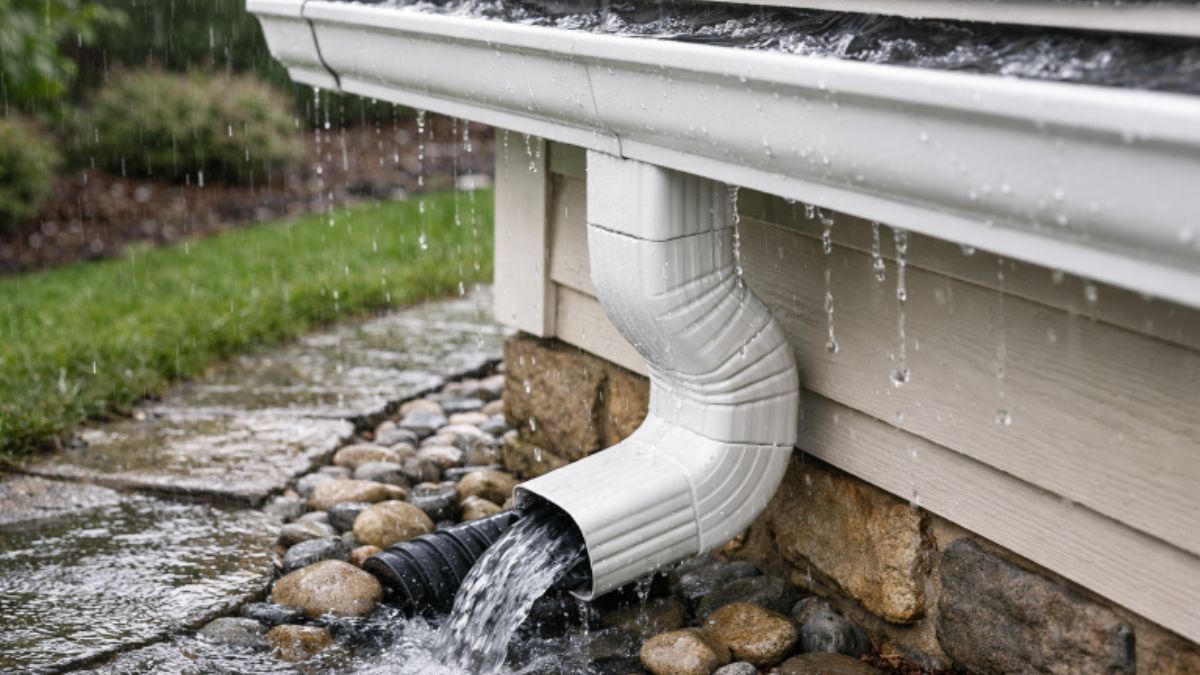
- Monitor downspouts: Confirm that downspouts direct water several feet away from the foundation, protecting your home’s structure from water intrusion and settling.
Conclusion
Proper gutter maintenance is essential for preventing water damage to your home. Staying proactive by cleaning gutters, scheduling inspections, and choosing the right system ensures your property remains safe and free of water-related hazards. By taking these simple yet impactful steps, you not only extend the life of your gutter system but also protect your home’s value and security for years to come.
-

 TOPIC10 months ago
Top 5 Features of Googlediqiu You Didn’t Know About
-

 TOPIC1 year ago
Why Large Waterproof Outdoor Rugs Are Essential for All Outdoor Spaces
-

 TOPIC2 years ago
7 Expert Tips For Choosing The Best Basement Renovation Companies
-

 FASHION2 years ago
How to Layer Your White Dress for Cold Weather?
-

 TOPIC12 months ago
Why Greece Katz Martian Has Everyone Talking in 2025
-

 BUSINESS1 year ago
Top 5 Features of Sowix Online That Every User Should Know About
-

 TOPIC1 year ago
Top Features of BetterThisWorld .com You Need to Know About
-

 FINANCE1 year ago
How TraceLoans Can Simplify Your Finances